
Many people don’t know how to uninstall apps from their computer. I see peoples’ computers all the time that have all sorts of bloatware, a word which here means useless apps that come with a computer or mobile device that you’ll probably never use. There are some apps that are just annoying, and others that get in your way. Other times, you install an app, and later you no longer want it. With this tutorial, you’ll be able to uninstall apps all by yourself without having to ask nerds like me to help.
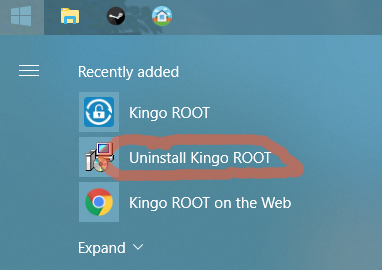
For this tutorial, I’ll be uninstalling an app called Kingo Root. I was going to use it in my Rooting Android tutorial, but it didn't work, so I no longer need it. Sometimes you can easily uninstall an app if it comes with an uninstall file. Not all apps come with one, though, so we’ll use a Windows app called the Control Panel instead, which can uninstall pretty much any app.
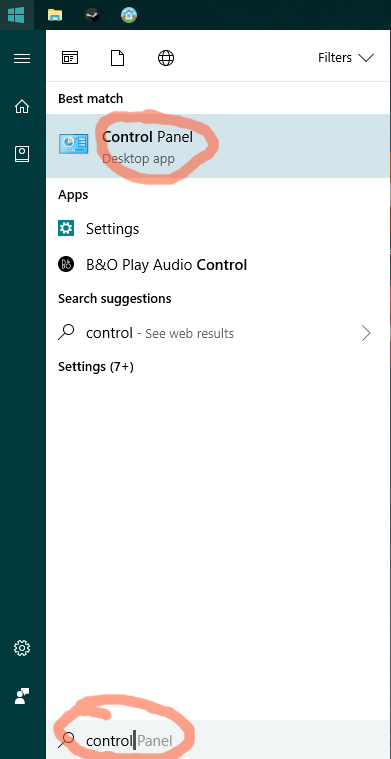
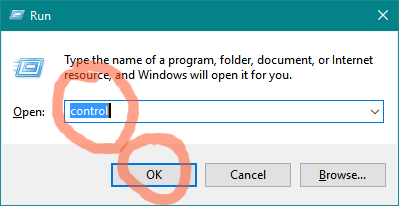
To open the Control Panel, you can either press the Windows button to open the Start menu, and then type “Control” to search for it. Click on Control Panel at the top of the search results. If you’re using a version of Windows that doesn’t have a search in the Start menu, you can alternatively press the Win + R keys. This will open the Run box. Type “control”, and press OK.
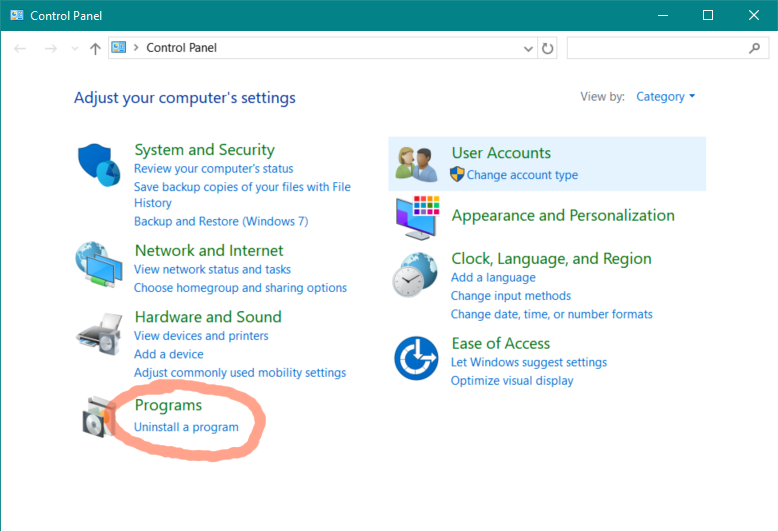
Once the Control Panel is open, click “Uninstall a Program” under the Programs header.
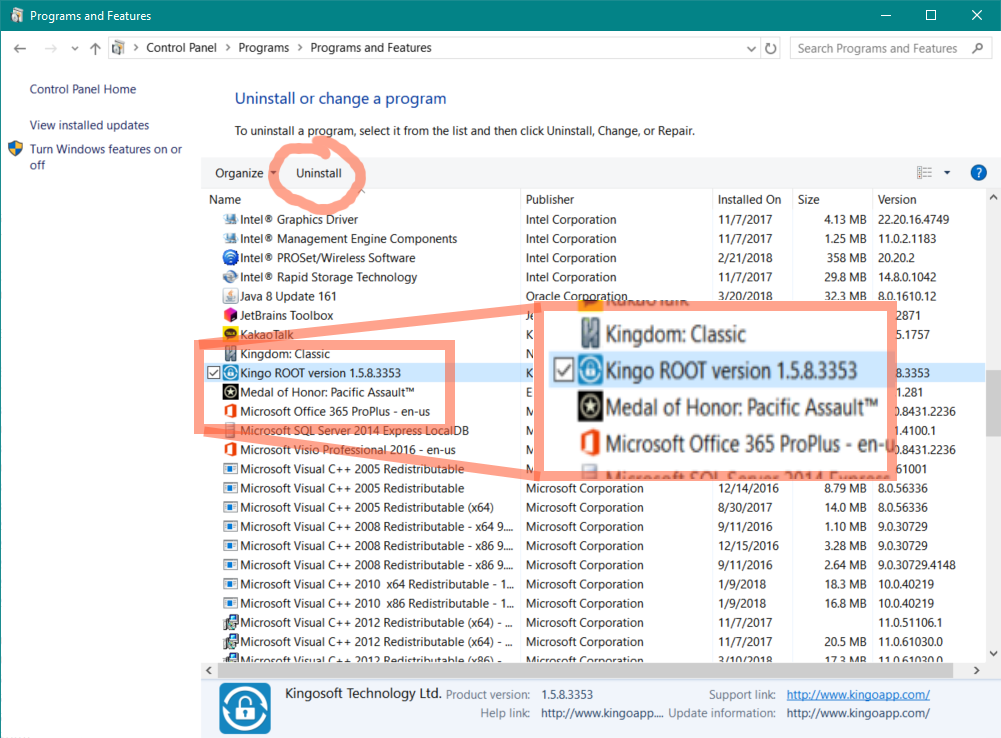
This will bring you to a list of your installed apps. Many of them came with your computer, and others could have been installed by you. To uninstall one, find the one you want to uninstall, and select it. Then, click the Uninstall button.
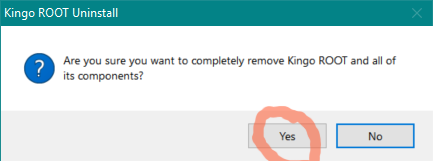
Some apps come with a thing called an uninstall wizard, which is an app that uninstalls other apps. Just follow the steps it provides. KingoRoot happens to come with a simple yes/no box asking if I’m sure I want to uninstall it. Click yes to proceed if you’re sure you don’t want it anymore.
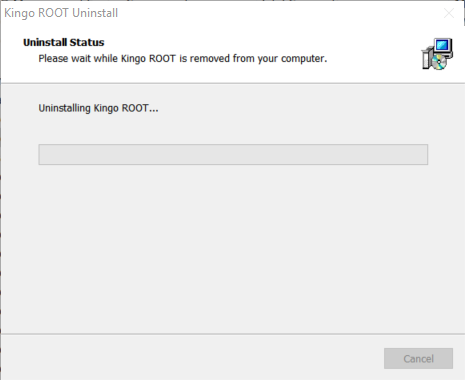
The app will then uninstall itself. Depending on the size of the app, it could take a while.
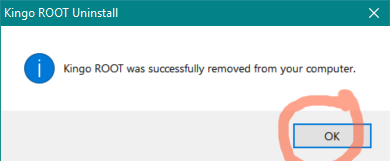
Once the app is done uninstalling, it’ll probably let you know. Just click OK to finish.
The process it takes to uninstall an app can be different depending on the app, but most of the time it’s the same. Some apps may have extra stuff. Some may ask you if you want to keep the app’s settings in case you want to install it again, which is entirely your choice. A few apps I’ve used will take you to a survey after it’s done asking why you uninstalled it so they can make it better. That’s entirely optional as well. I hope this tutorial was able to help you be able to uninstall programs. If you have any questions, feel free to ask me in the contact page.