
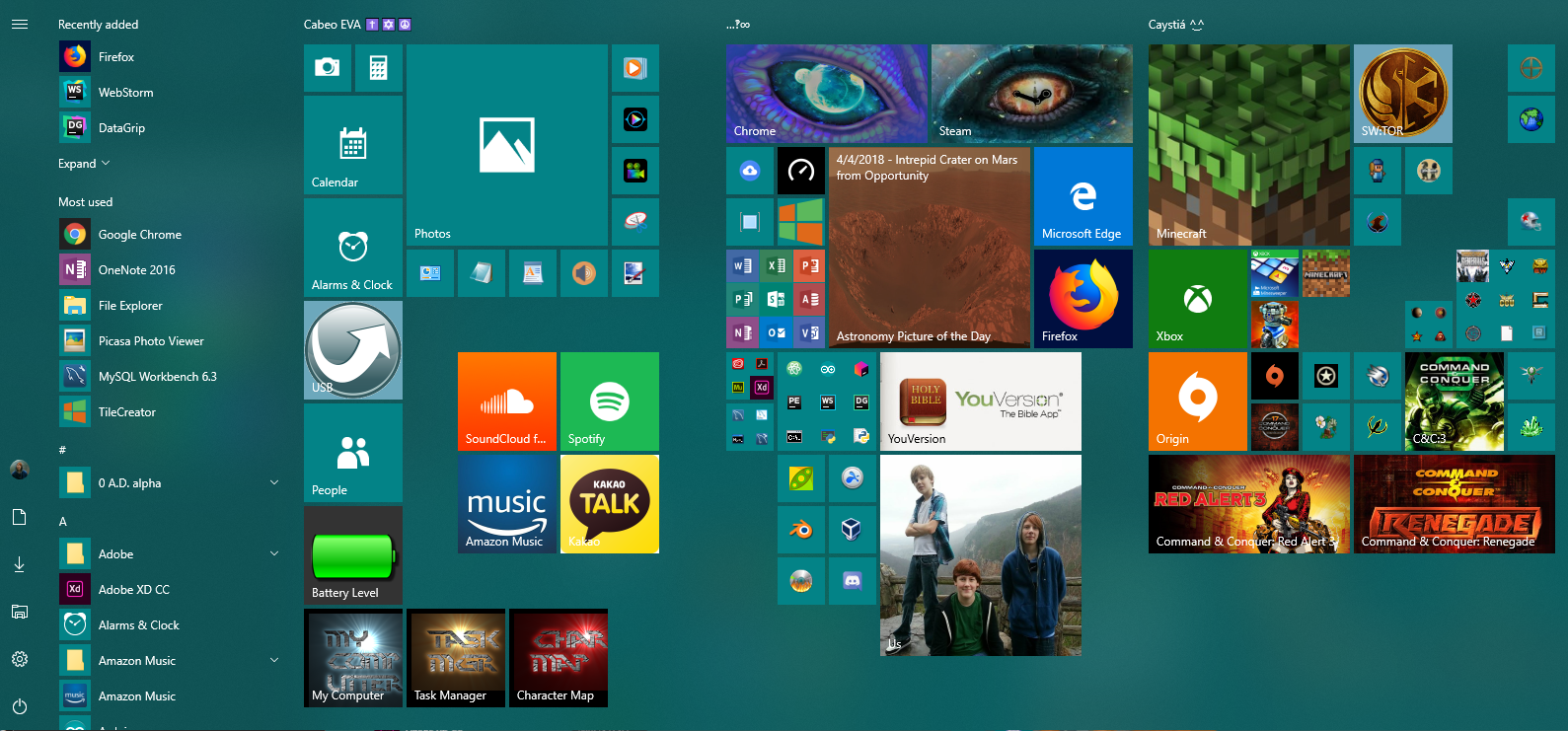
Shortcuts on a desktop are great. They can link to all sorts of things, from apps to files to websites. A lot of people forget about the Start menu, though, and fill their desktop with shortcuts and files. This is fine, but I personally prefer my desktop to look neat and tidy, and take advantage of the Start menu in Windows 10.
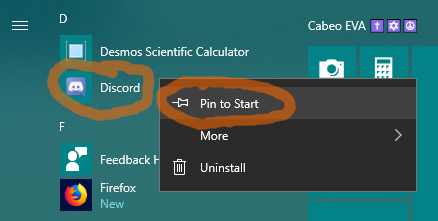
The first thing to do is to pin apps to your start menu. You can do that by right-clicking an app to the left of your Start menu and clicking “Pin to Start.”
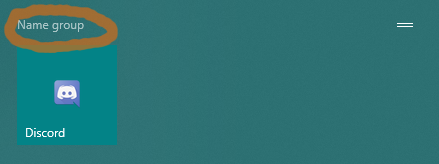
When you pin an app, it will automatically move to a new group as a tile in your Start menu. You can click on the group’s name to type in a name for it. You can put as many tiles in a group as you want. You can put all your games in a group, for example, and name the group games. You can also click and drag the group to move it around columns and other groups. You can have as many groups as you want, and as many columns as your Start menu will stretch, which depends on your screen size.
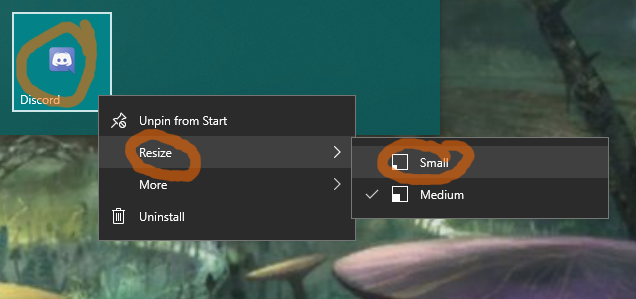
You can change the size of the tile by right clicking on it, hovering or clicking on “Resize” and selecting a size. Normal Windows apps can only be in two sizes. Metro apps, which are special apps from the Windows Store only for Windows 8-10, can sometimes go up to larger sizes.
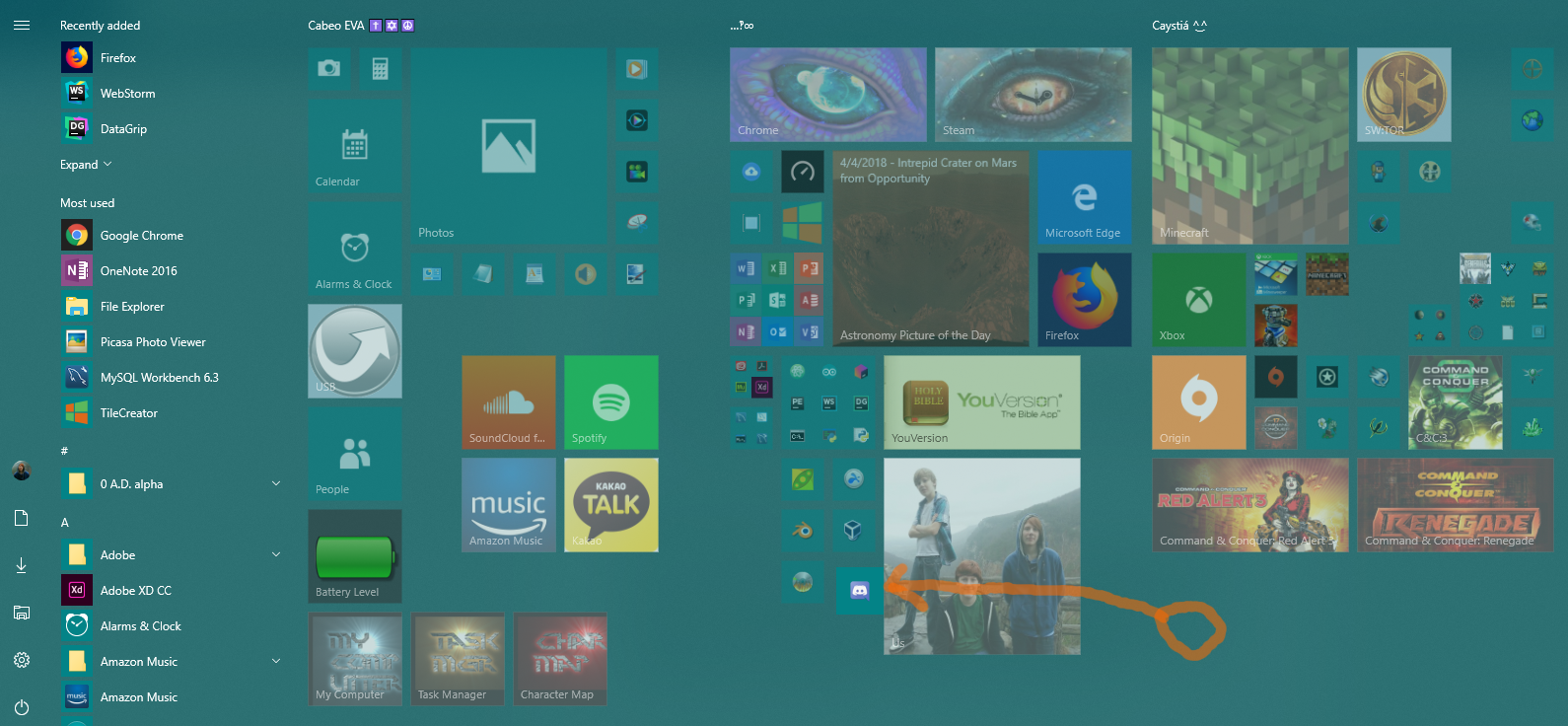
You can change the position of tiles by clicking and dragging them. If you move them in the way of other tiles, they will kindly shift out of the way.
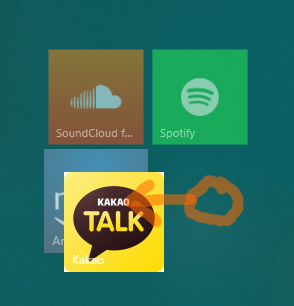
If you drop a tile directly on top of a another tile, it’ll create a folder. Sometimes movile tiles and creating folders can be a bit slippery, as tiles like to move around a lot if you’re trying to create a folder.
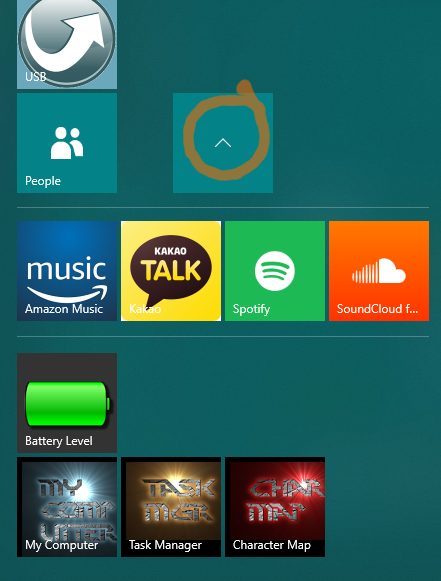
When you click on a folder, it’ll open and shift everything below it down. They’ll shift back when closing the folder. You can also move and change the size of folders, and can also move around the tiles inside of them. To delete a folder, just unpin or move all the tiles inside out of it.
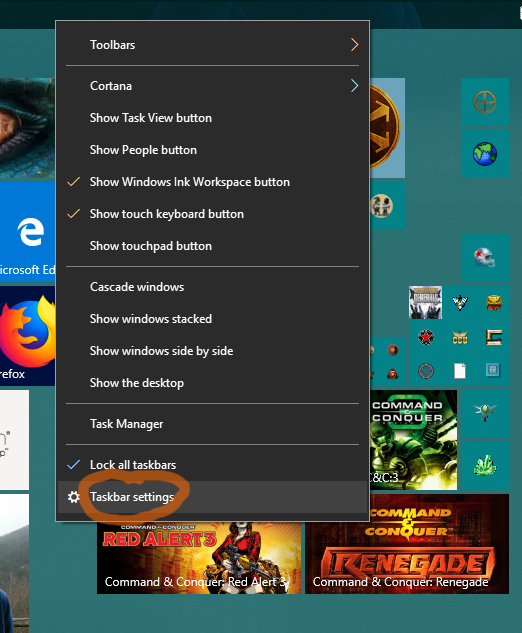
You can also change the color of your Start menu in the Settings app. You can easily get here by right-clicking on the taskbar and selecting "Taskbar settings."
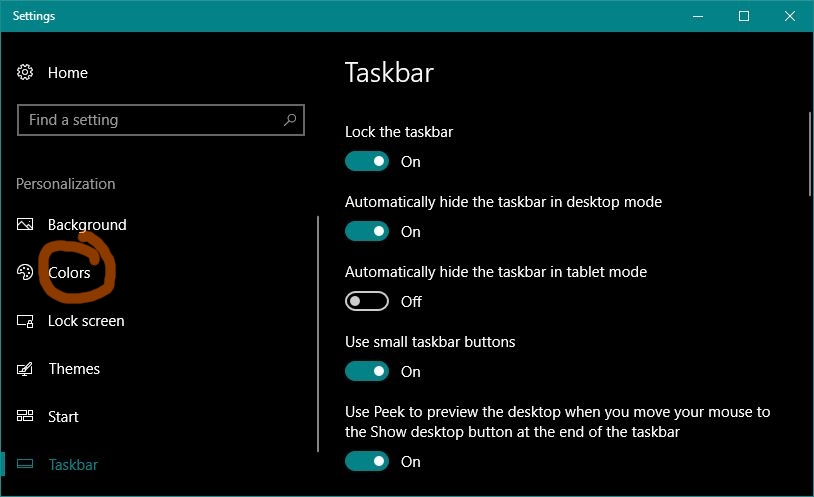
Click "Colors" to go to the colors settings.
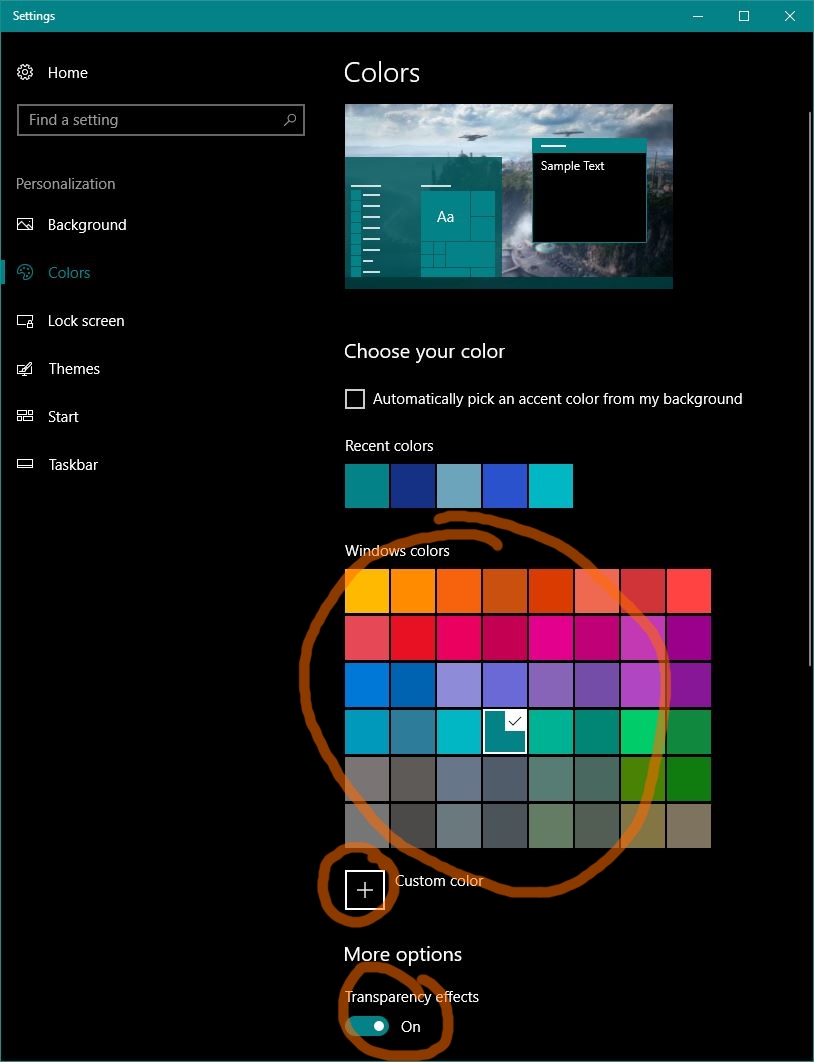
Here, you can change the colors of your desktop environment, a phrase which here means every graphical thing you visually see on your computer screen, including the Start menu, taskbar, and windows. You can pick from their predefined colors, or choose your own. Also enable transparency effects if you want because it looks cool.
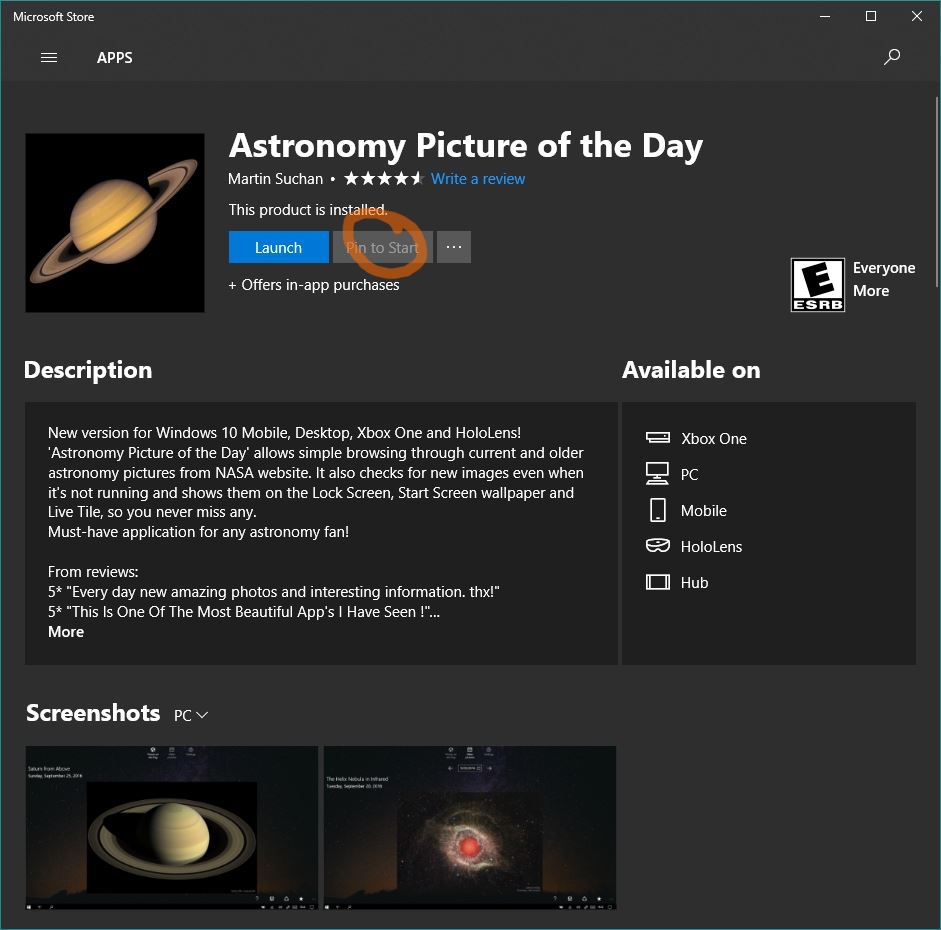
There’s also lots of apps on the Windows Store that have fancy tiles to spruce up your Start menu. I personally like Astronomy Picture of the Day, which you can download from here from the Windows Store for many types of Windows devices including phones and Xbox One. it shows a different NASA photo every day.
The Windows Start menu isn’t the most customizable thing in the world, but there are a bunch of things you can do with it to make launching apps easier while still making your computer look good.