
I’ve seen a lot of people complain that Windows doesn’t show file extensions, a phrase which here means the abbreviation at the end of a filename that tells you and your computer what type of file it is. By default, these extensions are hidden, but I recently found that there’s actually a way to show them like they should.
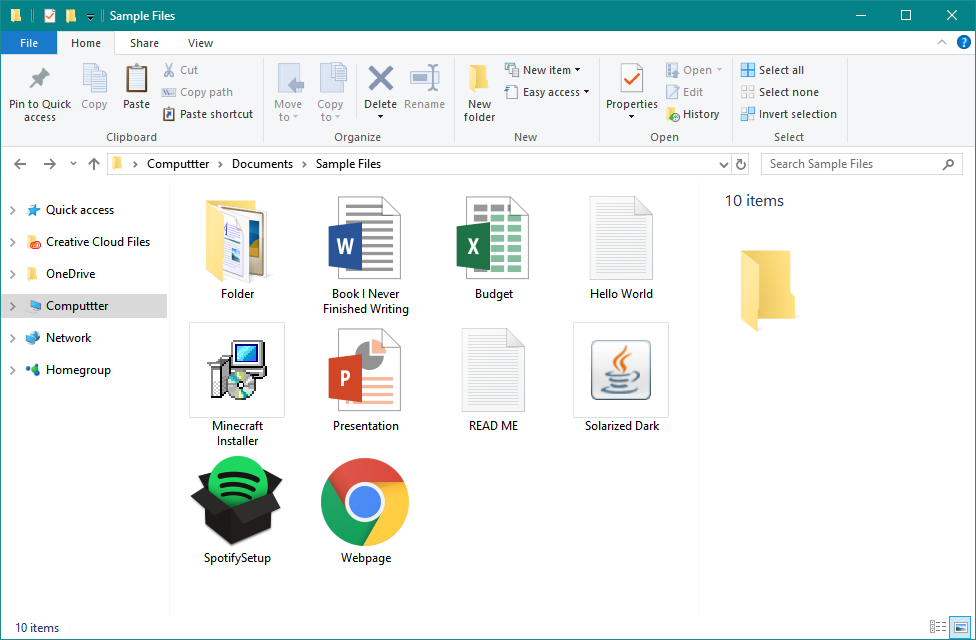
First, open the file manager, which is called File Explorer or Windows Explorer. I have a sample folder open with some sample files for the purposes of this tutorial.
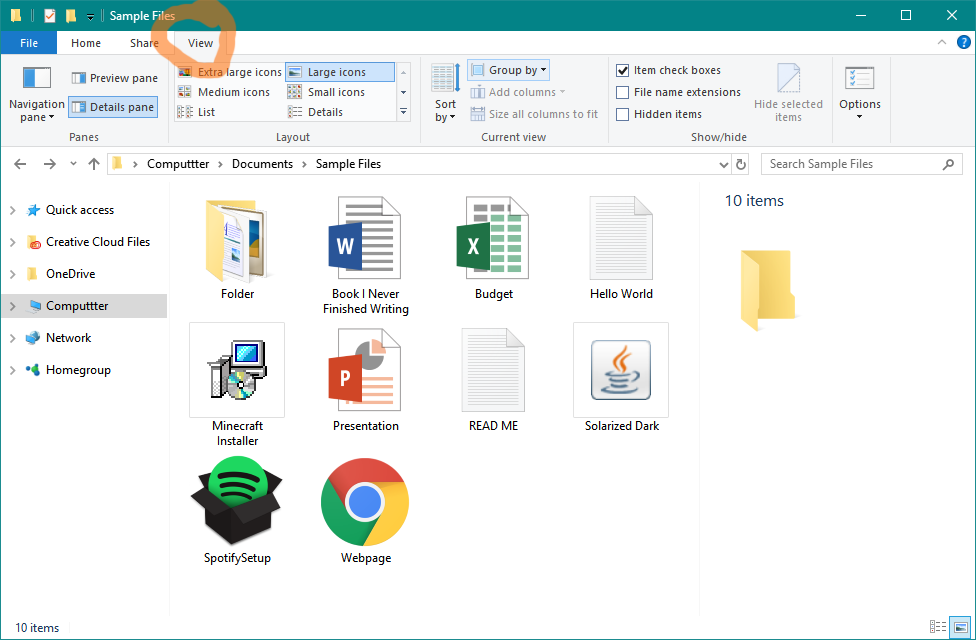
Click on the View tab at the top of the window.
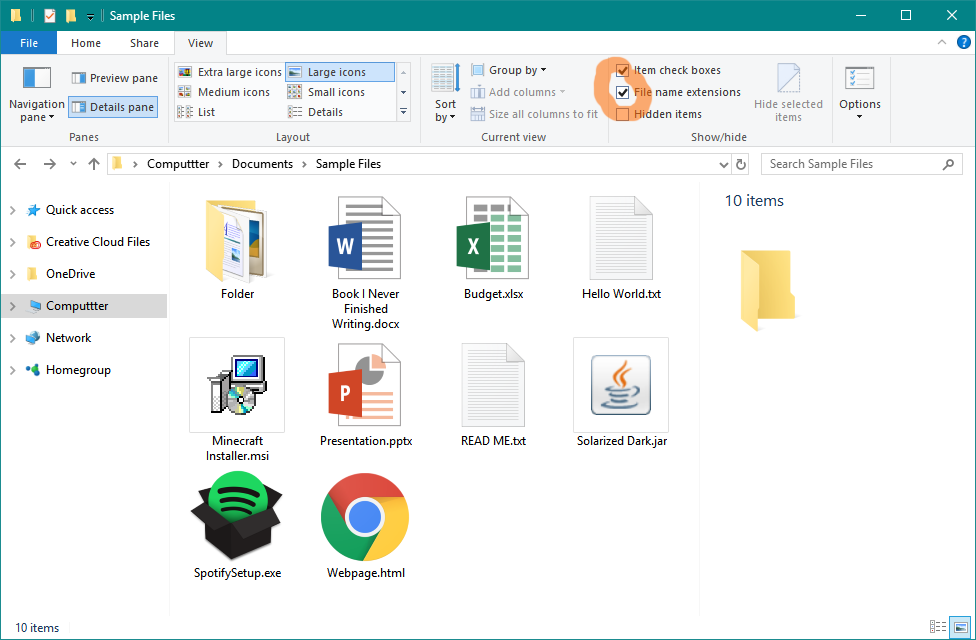
There’s a bunch of view options here that you may also find helpful. To enable file extensions, select the “File name extensions” checkbox within the “Show/Hide” group. This will show the file extension for all files. Notice that folders do not have file extensions.
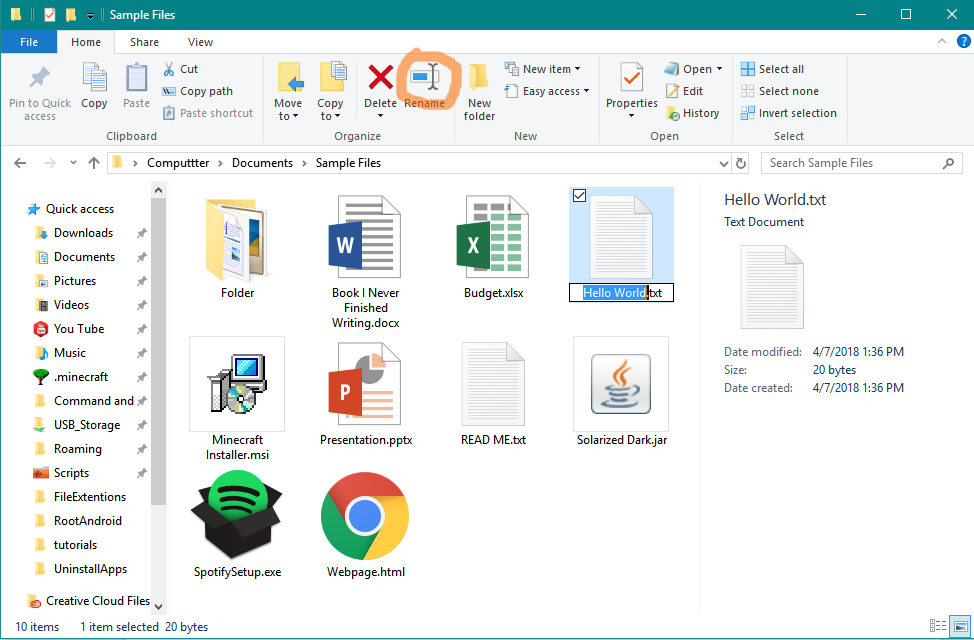
With this option enabled, you can change the file type of a file if you need to. You can do this by right-clicking the file and clicking rename, or by clicking “Rename” in the Home tab within the “Organize” group, or by pressing the F2 key on a keyboard. As you can see, when you rename a file, everything but the file extension is selected so you don’t accidently change it. You can select the file extension and change it to something else.

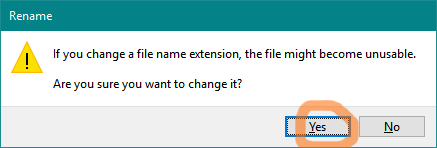
I want to change this file called “Hello World.txt” to “Hello World.py”. It’s actually a Python program, but it won’t run if it has the text (.txt) extension. I can change it to the Python (.py) extension. When you change the extension, Windows will warn you about changing the extension. If you know the file can still open as the new file type, you can say “Yes.”
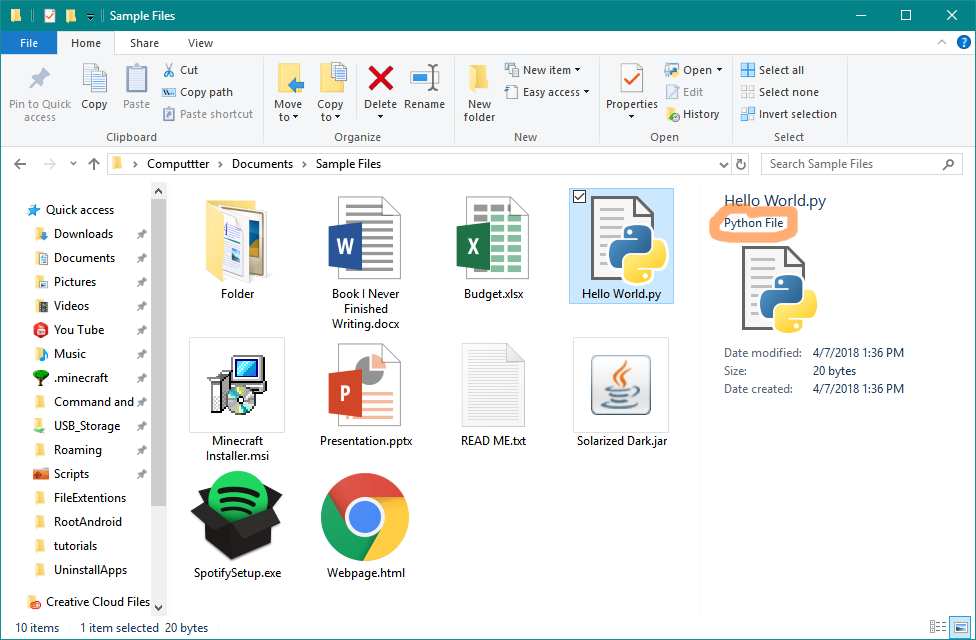
After changing the file extension, my computer recognizes the new file type. Note that not all computers have Python installed, so .py files won’t always be recognized.
If you want to change the file extension of a file, you must have an app installed that can open the new file type, and the file must be in the right format. You can’t rename a .PNG image to a .jpeg image because they don’t have the same format. You’d have to use an app to convert the formats. I hope this tutorial was able to help you know about this little helpful feature that many people wished Windows had, but didn’t know it already did.