
The BASH Terminal is an app found on UNIX-based operating systems, such as Mac and Linux. It uses the Bourne Again SHell, which is the shell based on the UNIX shell designed by a guy named Stephen Bourne. Before desktop environments were created, BASH is all people used to manage their UNIX-based computers. Today, a lot of people still use the BASH shell. This tutorial will teach you some of the basics of the BASH shell. I’m currently using Linux Mint, so the commands I use could be a bit different on other systems.
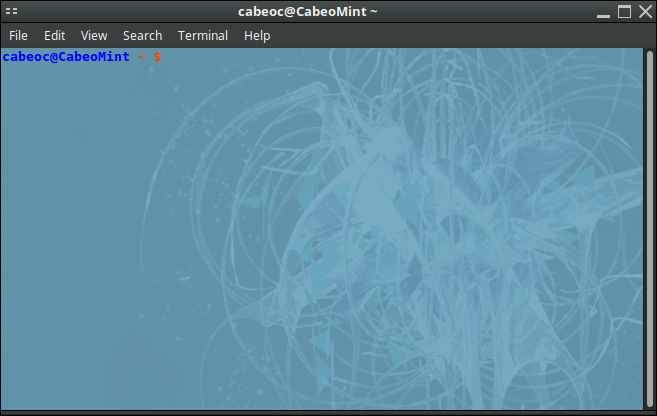
First thing’s first, go ahead and open the Terminal. You should be able to search for it among your apps. If you don’t have a desktop environment, the BASH shell should be all you can see. You may also be able to open it by pressing Ctrl + Alt + T on a keyboard.
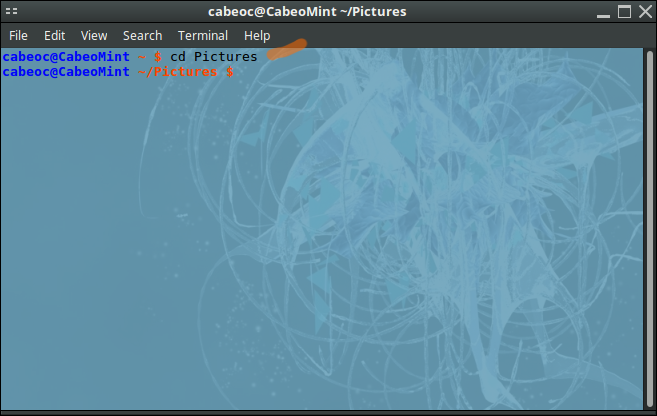
The cd command is used to change the directory. The term directory is the same as folder. On linux systems, the default directory is typically the “Home” directory. You can change to the root directory by typing cd /. You can go up a directory by typing cd Documents if you want to go to the Documents folder, if the Documents folder is within the directory you’re already in. You can go up multiple directories by typing cd Documents/folder where folder is the name of a folder within the Documents directory. Note that it is case sensitive, so if a folder is capitalized, capitalize it in the command. I’m navigating to the Pictures folder in this example.
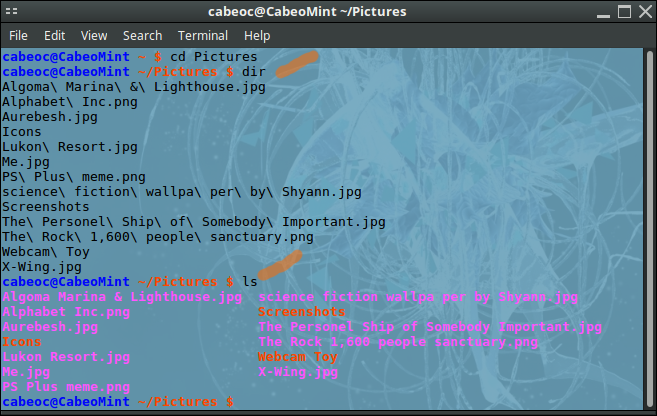
To see what’s in a folder, you use the ls command. Some systems also accept the dir command because that’s what Windows uses, but some systems don’t accept it, so it’s standard to use ls. In my example, Terminal color codes the types of files in the ls command. Images are showing up as pink, while folders show up as orange. You can change this color code in Terminal’s settings, which I will not cover in this tutorial. Not all Terminal apps support color codes.
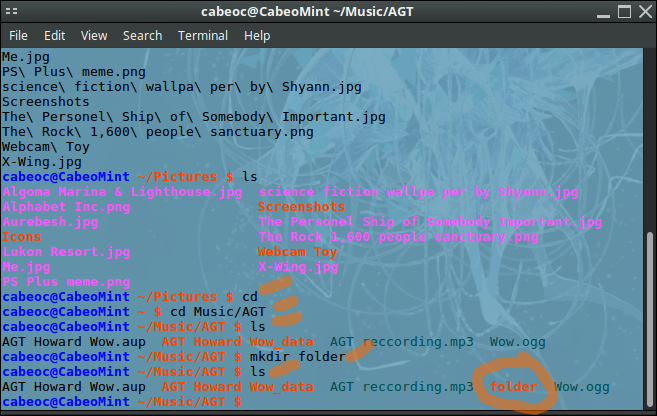
You can create a new folder within the current directory using the make directory (mkdir) command. In this example, I navigate to a folder called AGT within my Music directory. If I wanted to make a new folder called "folder," I could run the command mkdir folder. You can see that the new folder is created using the ls command before and after the mkdir command runs. I also could have made a new folder by running mkdir AGT/folder while currently in the Music folder.
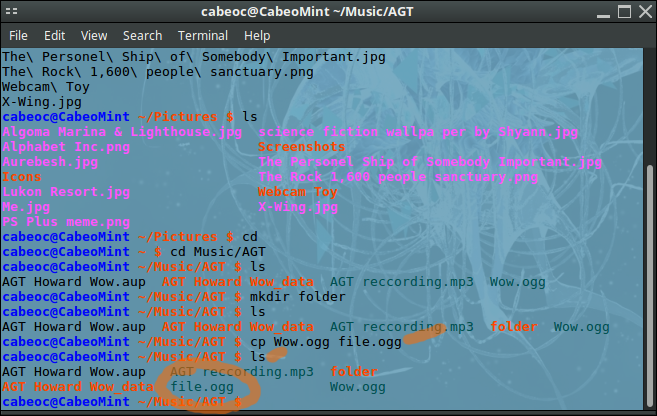
You can copy and paste a file using the copy (cp) command. The AGT folder has some audio files I edited summer 2017. I could copy the file called Wow.ogg using the command cp Wow.ogg file.ogg, which would make a copy of it called file.ogg. If I were in the Music folder, I could run cp AGT/Wow.ogg file.ogg to copy it to the Music folder, or cp AGT/Wow.ogg AGT/folder/file.ogg to make a copy within the folder we made in step 4.
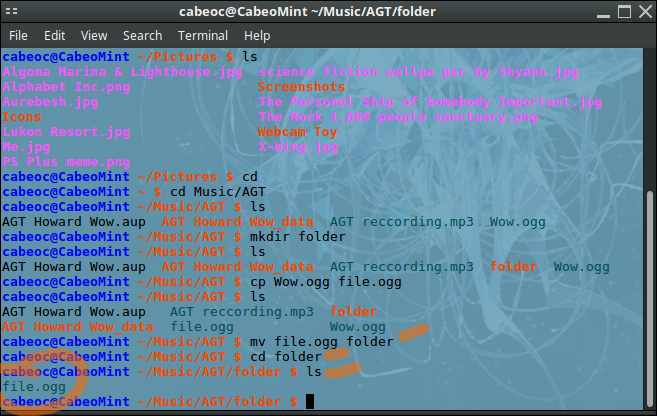
Speaking of the folder we made earlier, we can move files to and fro folders using the move (mv) command. We could move our newly copied file.ogg to the folder using mv file.ogg folder. It uses the same syntax as cp, so you can also do mv AGT/file.ogg file.ogg if you were currently in the Music folder to move it from the AGT folder to the current folder, which is Music. You could even move it over to Documents if you ran mv file.ogg /home/cabeoc/Documents, but only if you’re me. If you’re not, replace cabeoc with your username.
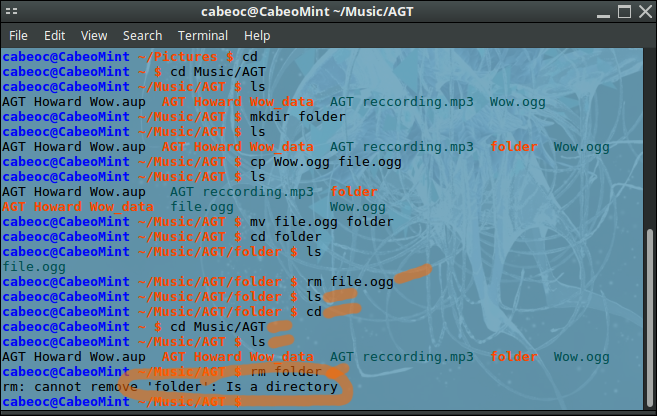
Since we don’t actually need these copied files, we can just delete them. Before we can delete the folder, we have to delete what’s in the folder. To delete files, we use the remove (rm) command. We can remove our copied file using rm file.ogg. Remove also uses the syntax that copy and move uses, so if you were in the Music folder, you could run rm AGT/folder/file.ogg. Now how do we remove the folder whose name is folder? Going back to the AGT folder, using rm on it produces an error.
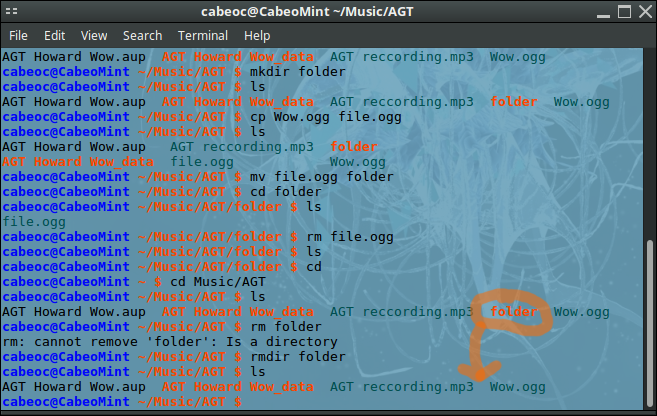
Deleting folders using rm doesn’t work. We use the remove directory (rmdir) command to delete folders. Running rmdir folder successfully deleted the folder. Using the ls command confirms that it’s not there anymore. This uses the same syntax as the rm command, so we could also run rmdir AGT/folder if we were in the Music folder.
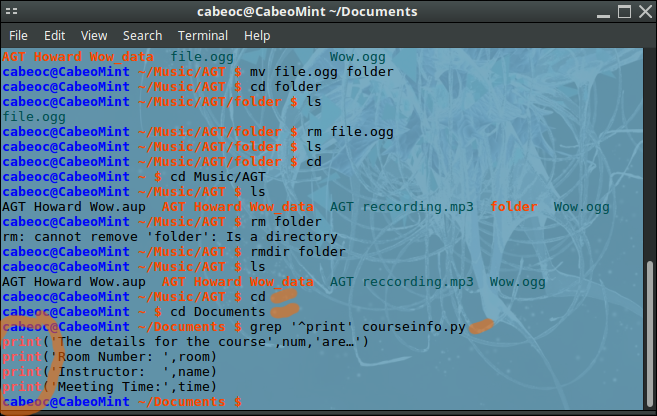
That’s about it for file management. There are many other useful commands as well. One that can be useful is called GREP, which is used for searching through documents using special code called regular expressions. REs are an entire language, just as BASH is its own language. You can read all about them from other sources throughout the internet. If you already know REs, you can run the command grep ‘regex’ text.txt where regex is the regular expression. For example, I have a Python file I made in my Python class in my documents folder. If we navigate there using cd, and then use the regex “^print”, we can find all lines in the file that start with “print”. grep ‘^print’ courseinto.py
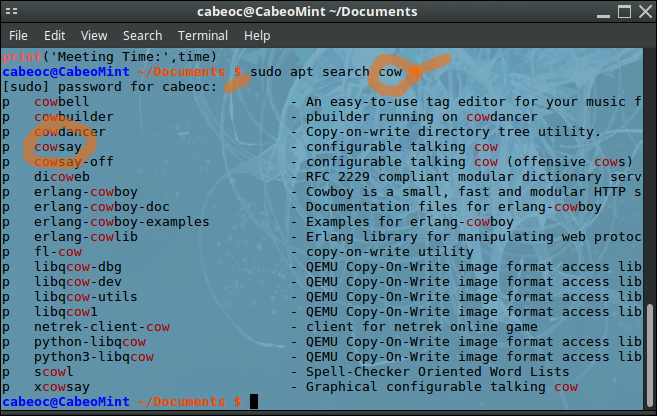
Another command is called sudo, which is mostly used with managing apps. There are tons of packages that install apps within the Linux repositories throughout the internet. For example, we can search the repositories for all apps with the keyword “cow” in them with sudo apt search cow. Things to note: The sudo apt-get command is only on certain Linux systems. The sudo command requires your password. Accessing the repositories using apt requires an internet connection.
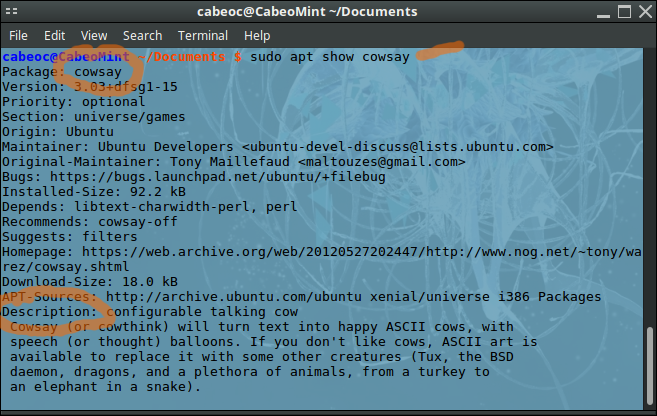
There happens to be an app called cowsay. It seems interesting; let’s see what it’s all about using sudo apt show cowsay. Here, we can read all about the package, including its size and what it does. Notice that if you’ve previously ran a sudo command in a Terminal session, you don’t have to re-enter your password.
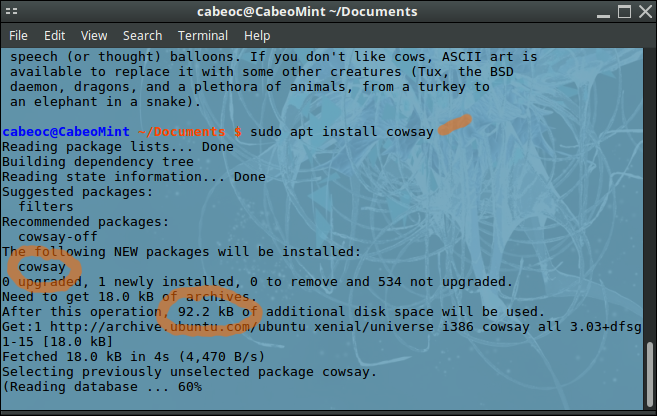
Cowsay seems fun; let’s get it! You can install apps using sudo apt install cowsay or sudo apt-get install cowsay. Some websites that provide Linux apps may give you a similar command to run to install their app. If your computer can’t find the app, you may have to update your computer’s repository database by running sudo apt update or sudo apt-get update. If your computer still can’t find a specific app you want, you may have to see if the developer of the app needs you to add a specific repository to your computer’s list of repositories. To delete an app, just run sudo apt remove cowsay, or whatever the app’s package name is if it’s not cowsay.
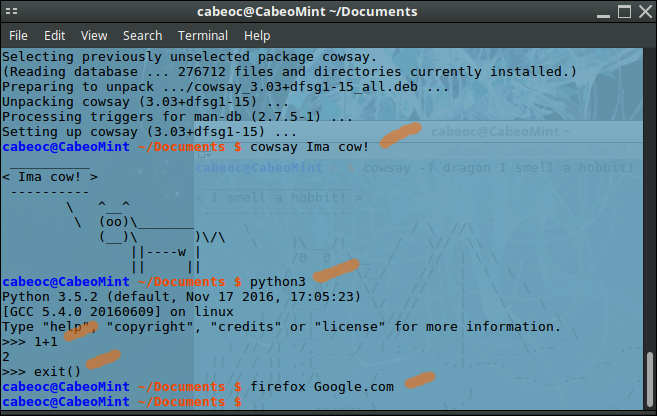
To open an app, type the name of the app’s package. Some apps accept arguments, a word which here means something that comes after the command, like the filenames we used in the copy command. With cowsay, you can type cowsay Ima cow!. What do you know, a cow comes on the screen and says “Ima cow!” You can open other apps, such as Python and Firefox, if you have them installed. Firefox and Python also accepts arguments, such as firefox google.com, which opens Google in Firefox, or whatever URL you want. See the app’s documentation on a list of commands it supports. You can press Ctrl + Z to close a Terminal program.
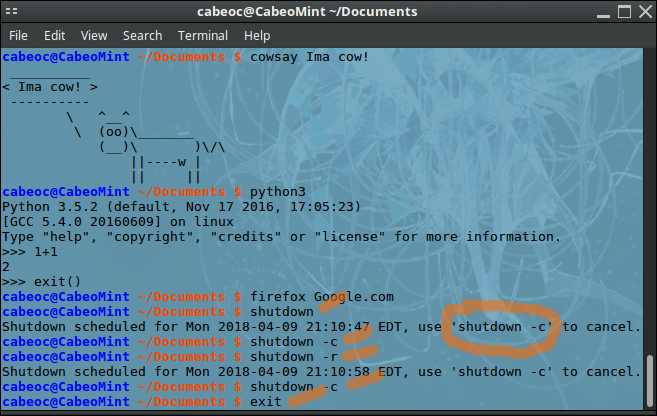
If you want to shutdown your computer, you can type shutdown, or shutdown -r to restart it. This command fully executes after about half a minute, so you can type shutdown -c to cancel it if you change your mind. If you’re done with the terminal app, you can type exit to close the Terminal session. If you’re using the BASH shell instead of a Terminal window within a desktop environment, this will log you out.
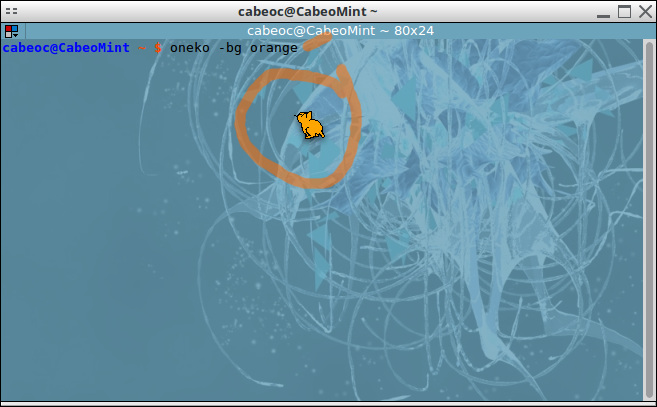
Just for fun, one of my favorite apps is called Oneko, which is a Linux port of Neko for older versions of Windows. Neko and Oneko is a little cat that follows your mouse around wherever it goes, and falls asleep when your mouse isn’t moving. You can get oneko using sudo apt-get install oneko. Open Oneko by typing oneko. Oneko also uses arguments. In the example here, I change the background color to orange using the -bg argument and the color orange with oneko -bg orange. You can also change his outline/foreground using the -fg argument. If you’re a dog person, use the -dog argument with oneko -dog -fg brown -bg orange. The Oneko documentation has a list of additional arguments you can use. I also happen to be using Terminator in this example, an alternate Terminal app with additional Terminal features.
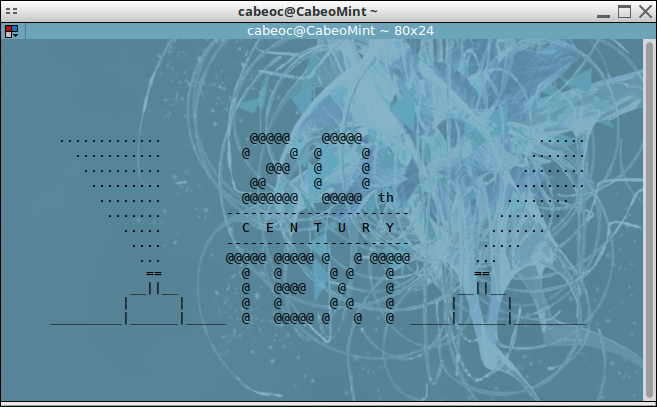
One last thing, here’s an Easter egg some people made. You can watch Star Wars: A New Hope in the form of text in Terminal! Just type the following command. telnet towel.blinkenlights.nl The telnet command requires an internet connection, and may not work on all systems. It doesn’t seem to work on Android and some versions of Mac OS.
The BASH shell is a powerful tool used to manage a computer. With that power comes great responsibility, as they say in Spain. Though it’s great to know how to use a command like shell such as BASH, you can cause harm to your computer if you don’t know what you’re doing. There’s one command for example (I won’t list it), that deletes everything in your root directory, which is literally your entire operating system. Some internet trolls may say that it’ll make your computer run faster, but it does quite the opposite. Also be careful when using commands like the remove or move command. You could accidently delete or replace a file you didn’t mean to, or put a file in a folder that doesn’t exist, as there’s sometimes no confirmation asking if you want to. Be smart about the commands you run, practice typing commands and gain more knowledge of commands, and you can save tons of time using the BASH Terminal.
If you're using GNU/Linux, I created a cheat sheet full of commands for Terminal. I can't guarantee they'll work for non-Linux systems, though.
53.6KB PDF